Automate creative production tasks with Focal Workflows
Focal Workflows understands your creative production natively — projects, tasks, and assets. Automate Slack alerts, ad platform uploads, and AI-powered analysis.

Creative workflow automation, built into your DAM
Most creative teams have limited workflow automation available. Existing software has mainly focused on asset creation like visual ad templates or resizing material. Automation for things like file or project management has required custom integrations on top of general-purpose productivity tools, which takes time and engineering resources to build and maintain.
Teams have patched this with external tools like Zapier, but they don't understand your creatives, and setting up all of the required data handling and connections to other systems is very tedious. LLMs have helped close some of the gaps, but even they struggle with creative context, automatically triggering the right things and transferring files between systems (without building custom setups).
Today we're launching Focal Workflows: native creative workflow automation built directly into our performance DAM. Workflows offers triggers and actions that natively understand your creative project management, asset library and ad channels, while also having the ability to connect to your other systems.
How Focal Workflows work
A workflow is two things: a trigger and one or more actions.
Triggers are what start the workflow.
At the time of writing, the triggers below are available, and we will add more in the future. All triggers can be filtered further so they only apply specific changes, specific folders, project tasks, etc.
Task is updated: defined change in a task starts the workflow (e.g. task status is set to approved and a specific user is assigned)
Media is added to the Asset library: a new file lands in Focal.
Media change: a defined change in the media information starts the workflow (e.g. a style: “UGC” tag is applied to an asset)
API Trigger: an external system calls Focal to start a workflow
Actions are what happens next. You can chain multiple actions from a single trigger:
Upload to Meta, TikTok or YouTube: push media directly to an ad account or channel
Slack Message: send any message to any Slack channel or direct message
Ask AI: send a prompt to an AI model and use the response as a workflow step
Create or update board task
Create Media / Update Media: create a media file from a URL or update an existing one, including adding tags and properties
HTTP Request: call any external service
One workflow can push a creative to Meta, send a Slack notification to the UA team, and update a separate board row, all from a single status change.
Every run is logged, so you can see exactly what each workflow changed and track down any failed attempts.
Three example workflows worth setting up today
1. Creative approved → add to Meta, TikTok and YouTube
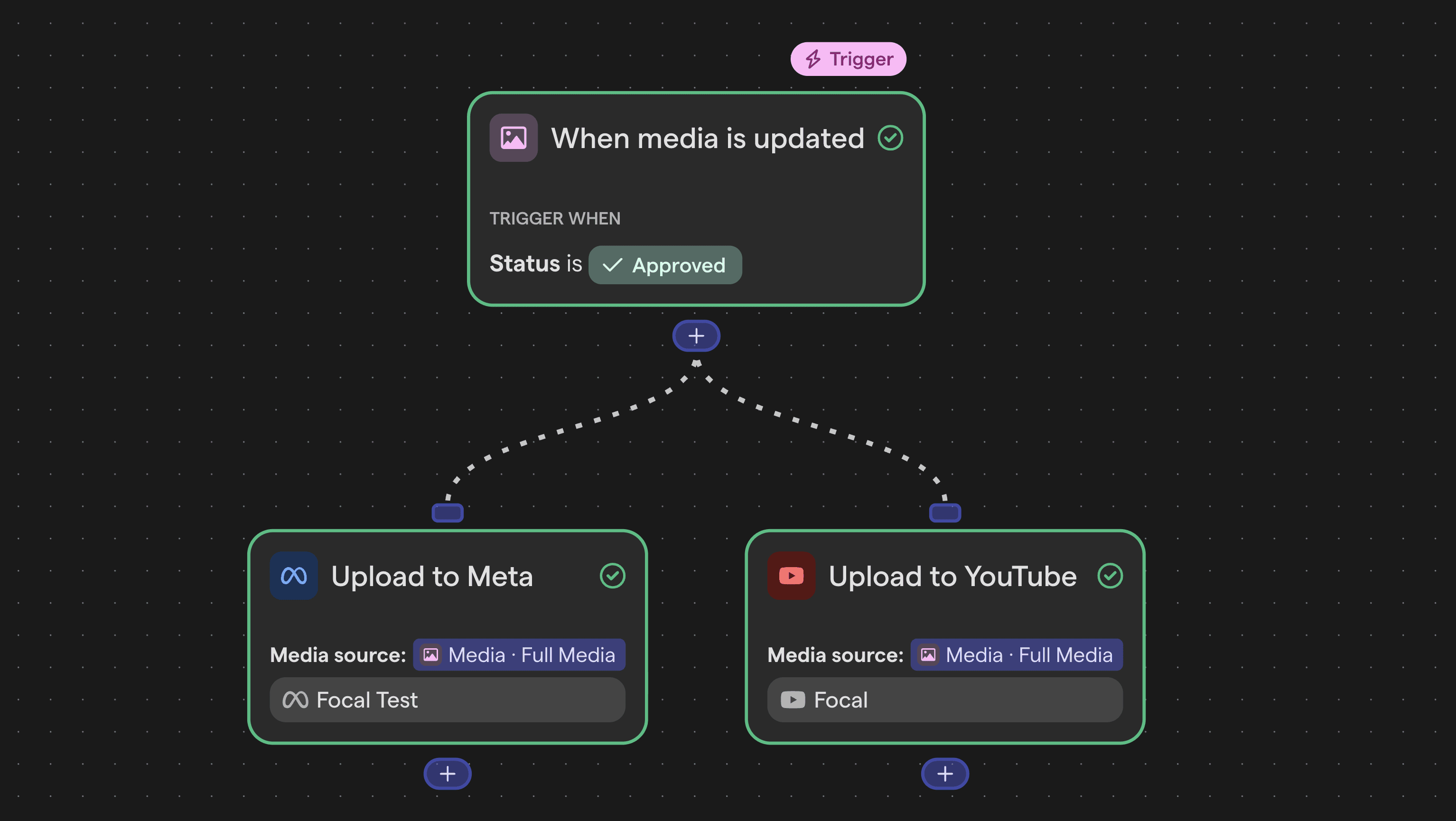
When a board row status changes to Approved, or when an asset is moved to a specific folder, Workflows pushes the asset directly to your ad accounts.
The creative that gets signed off at 4pm is in the ad account by 4:01. The media buyer doesn't need to touch the file, and it arrives correctly named in the right place.
When the handoff between creative and UA teams is automatic, performance marketers have real-time access to what's approved and ready to run. Creatives go live faster, with less manual steps and errors.
2. Task marked done → Slack summary of what shipped
When a row is completed, Workflows sends a Slack message providing a freely customizable AI summary of the item: e.g. what concept it was, which team or agency produced it, and how long it took from creation to completion.
The creative lead sees what shipped right on Slack and the media buyer has context before the creative arrives.
This is especially useful when you're managing multiple agencies simultaneously. Instead of chasing status updates before a check-in, you get a structured notification every time a deliverable closes (or goes into production for example).
3. Custom Slack notifications from any trigger
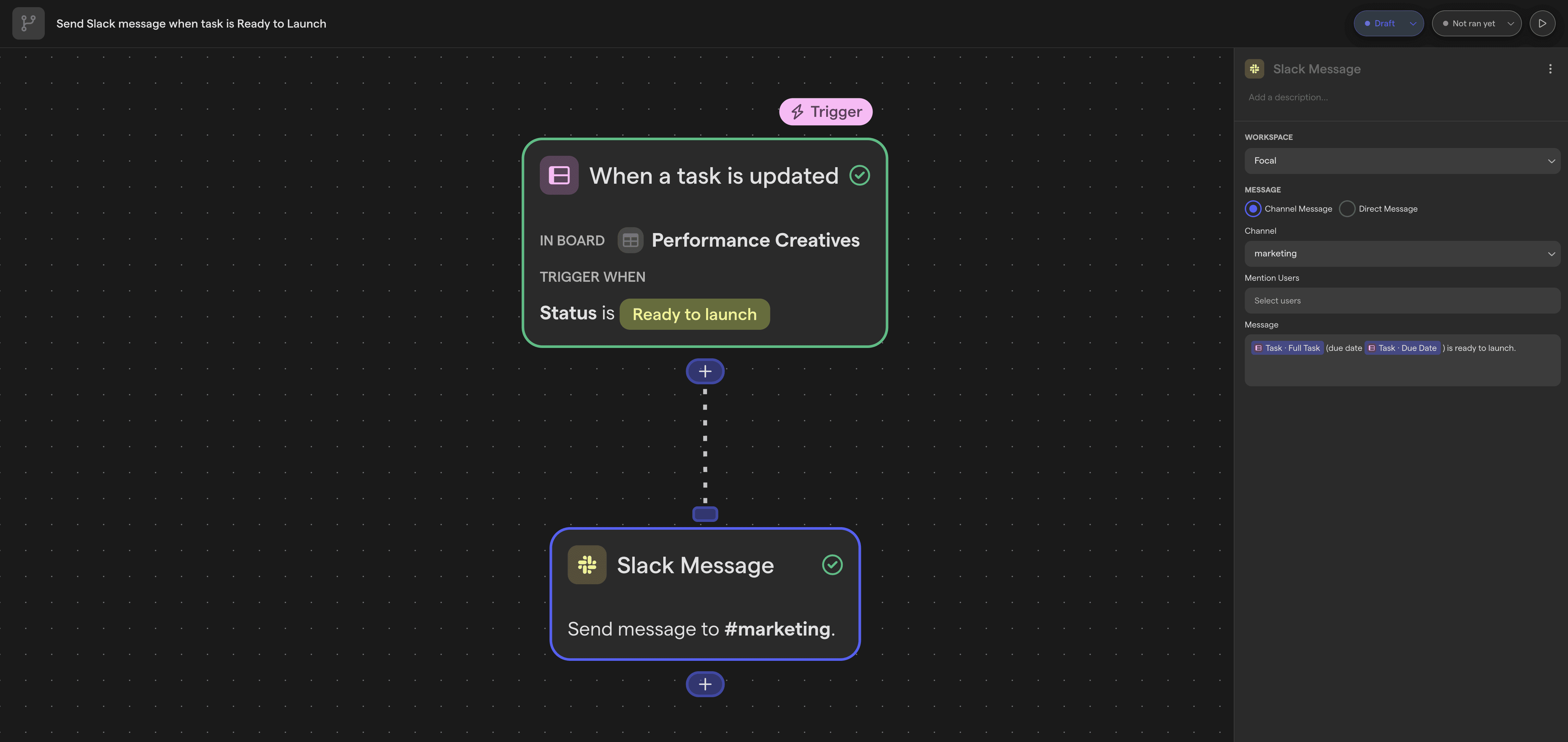
Focal's built-in notifications cover the standard cases. Workflows handles everything else. With "Ask AI" actions, you can easily build custom summaries and other types of messages for every crucial part of your specific creative production process.
For example:
Alert a specific channel when a new batch is added to the library.
Notify the UA team the moment a creative is approved for launch.
Ping an account manager when a brief is updated.
All of this messaging can now run without a separate automation tool subscription running alongside your DAM.
Easily set up automated AI actions using your creative context and assets
With Workflows, your creative assets can easily interact with AI models in different ways. The Ask AI action sends a prompt to an AI model from inside the workflow and uses the response as a step in what happens next. More importantly, it has access to your creative context such as any AI autofills, metadata, labels, and the actual visuals in the asset.
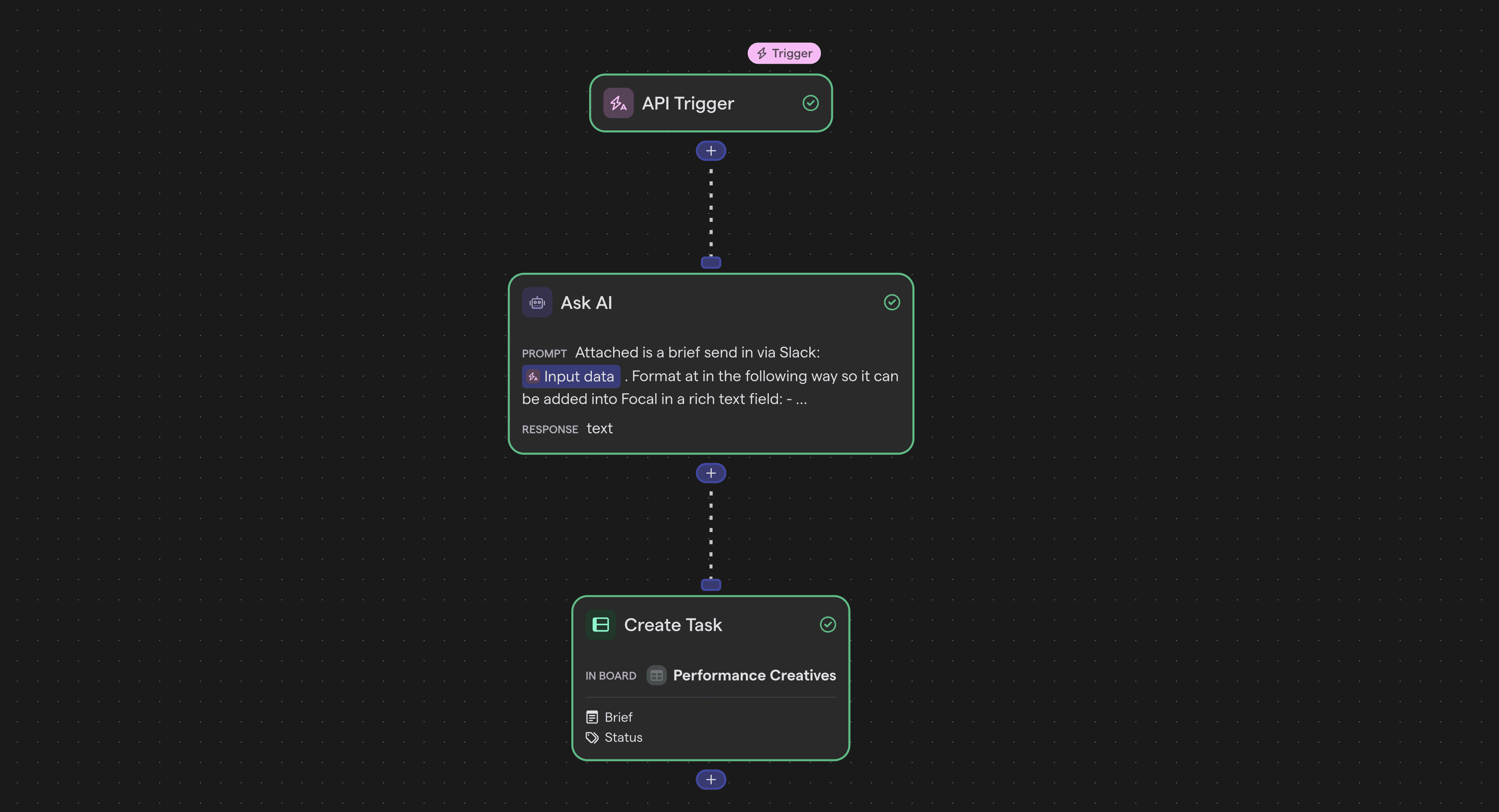
Here are a few practical examples:
When a row is updated with new information, it can produce a one-line brief summary and post it to Slack.
When a batch is completed, it can describe what shipped before it reaches the media buyer.
It can surface stalling items, rows that have been in the same status longer than expected, and post an alert before the delay becomes a problem.
With Workflows, AI reasoning is a native step, not a task you run separately in a chat window, with access to nothing but metadata.
Available on all plans
Workflows is available on every Focal plan at no additional cost. Navigate to Workflows from the left-side menu to build your first workflow.
What this means for performance teams
Downloading a batch of ad creatives and uploading it to three platforms isn't a big task on its own and takes maybe 20 minutes. But 20 minutes per batch, for every sprint, across three ad channels and every designer and agency you work with, quickly adds up to hours of weekly clicking that drains the team. Once you factor in all the manual notifying and communication that needs to happen on top, even a single creative batch consumes a lot of valuable time from Creative Strategists and other team members.
Workflows removes many of those unnecessary steps. When the trigger conditions are met, approved creative goes where it needs to go, the relevant people get notified and the right board updated automatically.
Workflows gives you hours back every sprint, leaving more time for creative strategy and understanding what to build during the next sprint.
If you'd like to get started with Workflows, get in touch.